Task Manager — Turn Ideas Into Action.
Every project begins with an idea. Turn that idea into a task, assign it, track it, and complete it without leaving your notes. Zunoy Notes keeps your work and documentation together, so nothing gets lost between planning and execution.
Free to start.
No credit card required.
Visual MindMap
Unlimited Notes
Folder Structure
Where Work Falls Apart
Great Ideas Mean Nothing Until Someone Owns Them
Every project starts with conversations. A meeting ends with action items. A brainstorming session sparks new ideas. A customer reports a bug that needs fixing. The work is clear—but somewhere between your notes, messages, and task app, the context gets lost. One app holds the discussion. Another tracks the task. Before long, you're switching tabs just to remember why something needed to be done in the first place.
Task Manager in Zunoy Notes keeps planning and execution together. Turn ideas into tasks the moment they happen, assign them to the right people, and keep every task connected to the notes, documents, and discussions behind it.
When your work stays connected to its context, projects move forward with less confusion and better collaboration.
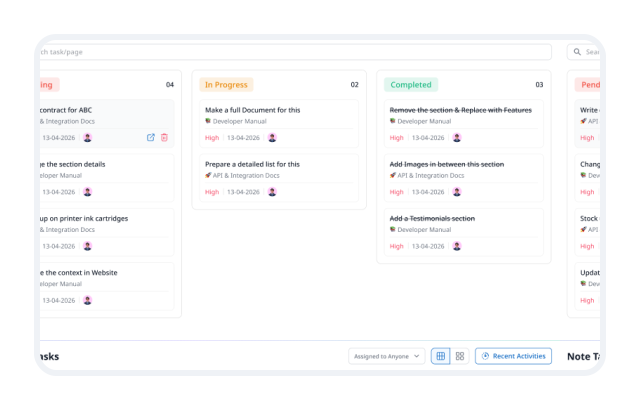
One Workspace. Every Project.
From Personal To-Dos to Team Projects
Task Manager adapts to the way you work. Whether you're planning your week or coordinating work across a team, every task stays organized and easy to track.

Project planning
Break large projects into tasks, assign owners, keep progress visible start to finish.

Meeting action items
Turn decisions into actionable tasks before anyone forgets what's next.

Product development
Track features, bugs, and releases, connected to product documentation.

Marketing campaigns
Plan launches, organize content calendars, and monitor progress in one place.

Personal productivity
Manage daily to-dos, reminders, and priorities without juggling apps.

Team collaboration
Give teammates clear ownership, deadlines, and visibility across the project.
No matter what you're managing, your notes and tasks work together instead of living in separate tools.
Plan It. Track It. Complete It.
Managing work shouldn't require a complicated setup. Task Manager keeps the process simple, so you spend less time organizing and more time making progress.
Context Changes Everything
A Task Is More Useful When It Knows the Story Behind It
Most task managers tell you what needs to be done. The details behind that task are usually buried somewhere else—in meeting notes, project documents, research, or chat messages. Finding that context often means opening another app and piecing everything together.
Task Manager in Zunoy Notes keeps your work connected from the beginning. Create tasks directly from your notes, link them to the documents they're based on, and return to the full context whenever you need it. Every decision, discussion, and detail stays within reach.
Instead of asking "Why was this task created?", your team can jump straight into the work with everything they need already connected.

Task Manager Works the Way Your Team Does
Whether you're managing personal goals or coordinating work across departments, Task Manager adapts to your workflow instead of forcing you into someone else's.

Product Teams
Plan features, track releases, manage bugs, and keep product documentation connected to every task.

Marketing Teams
Organize campaigns, assign creative work, manage content calendars, and keep projects moving from idea to launch.

Developers
Track development tasks, prioritize issues, and connect technical documentation with every feature or bug.

Students
Stay on top of assignments, group projects, deadlines, and study plans without switching between notes and to-do lists.

Freelancers
Manage multiple clients, organize deliverables, and keep project notes alongside every task.
Manage Work Without Losing Context
Most task management tools do a great job of organizing work. But the information behind those tasks often lives somewhere else. Notes are stored in one app, documents in another, and conversations in yet another. The more tools you use, the harder it becomes to keep everyone aligned.

Excellent for simple lists — but not built to support larger projects.

Powerful workflows — but they separate tasks from the notes that give them meaning.
VS
VS

Zunoy Canvas
Brings both together. Tasks, notes, documents, and ideas in one connected workspace — plan, collaborate, and move projects forward without switching tools.
Frequently Asked Questions
What is Task Manager in Zunoy Notes?
Task Manager helps you create, organize, assign, and track tasks without leaving your workspace. It keeps every task connected to your notes, documents, and projects, making it easier to manage work from start to finish.
Can I create tasks directly from my notes?
Yes. You can turn ideas, meeting action items, or project plans into tasks while you're writing. Your tasks stay connected to the notes they came from, so the context is always available.
Does Task Manager support Kanban boards?
Yes. Organize your work with a Kanban board to visualize progress across different stages, or switch to List view whenever you prefer a more structured overview.
Can I assign tasks to other people?
Yes. Assign tasks to teammates, set ownership, and keep everyone aligned on who's responsible for what.
Can I set due dates and priorities?
Yes. Every task can include a due date and priority level, helping you organize work based on urgency and importance.
Can I track the progress of my tasks?
Yes. Move tasks through different stages, monitor their status, and see recent activity to understand how work is progressing.
Turn Every Idea Into Progress.
Great work starts with a single idea—but it doesn't end there. Task Manager in Zunoy Notes helps you turn ideas into action, keep projects moving, and stay connected to the notes and knowledge behind every task. Plan with confidence, collaborate with your team, and manage work from one connected workspace.

Notes
Zunoy online notes helps you capture every idea, organise the knowledge behind it.
Operational
Contact Us On
Mail Us
support@zunoy.comCopyright © 2026 - Mentcube Innovations Pvt Ltd.. All Rights Reserved.